BrandK Restaurant POS System Malaysia
English
한국어
中文
Bahasa
Download Program
MAIN FEATURES
POS SOLUTIONS
POS System Malaysia
Restaurant POS System
Ordering System
PROCESS/OPTION
FAQ
TROUBLESHOOT
USER MANUAL
Basic Guide
Detailed Guide
E-INVOICE
e-Invoice Guides
Who is required?
What to prepare
2026/2027 relaxation myth
BrandK E-Invoice (PC)
ExpenseAI (Mobile)
Consultation
Consultation
1. Start Guide
A short guide for anyone using the POS for the first time.
1-1. Log in
1-2. Main screen
1-3. How to take an order
1-4. How to pay
1-5. Cancel or change an order
1-6. Log out
1-7. Need more help?
1
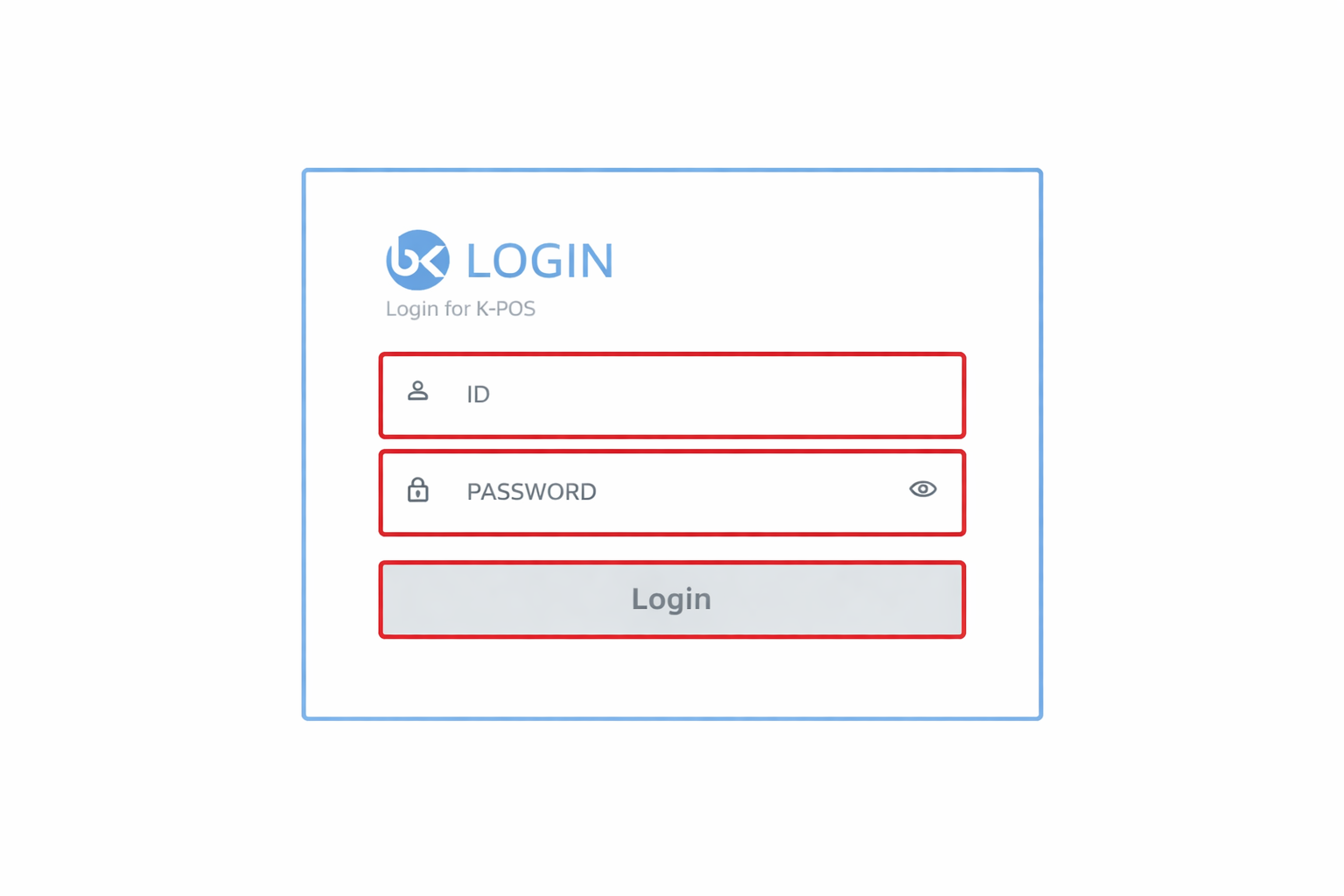
1-1. Log in
Start
Open the POS app, enter your User ID and Password, then tap Login.
TIP
Ask your store manager for the ID and password.
1-1. Log in
Login
2
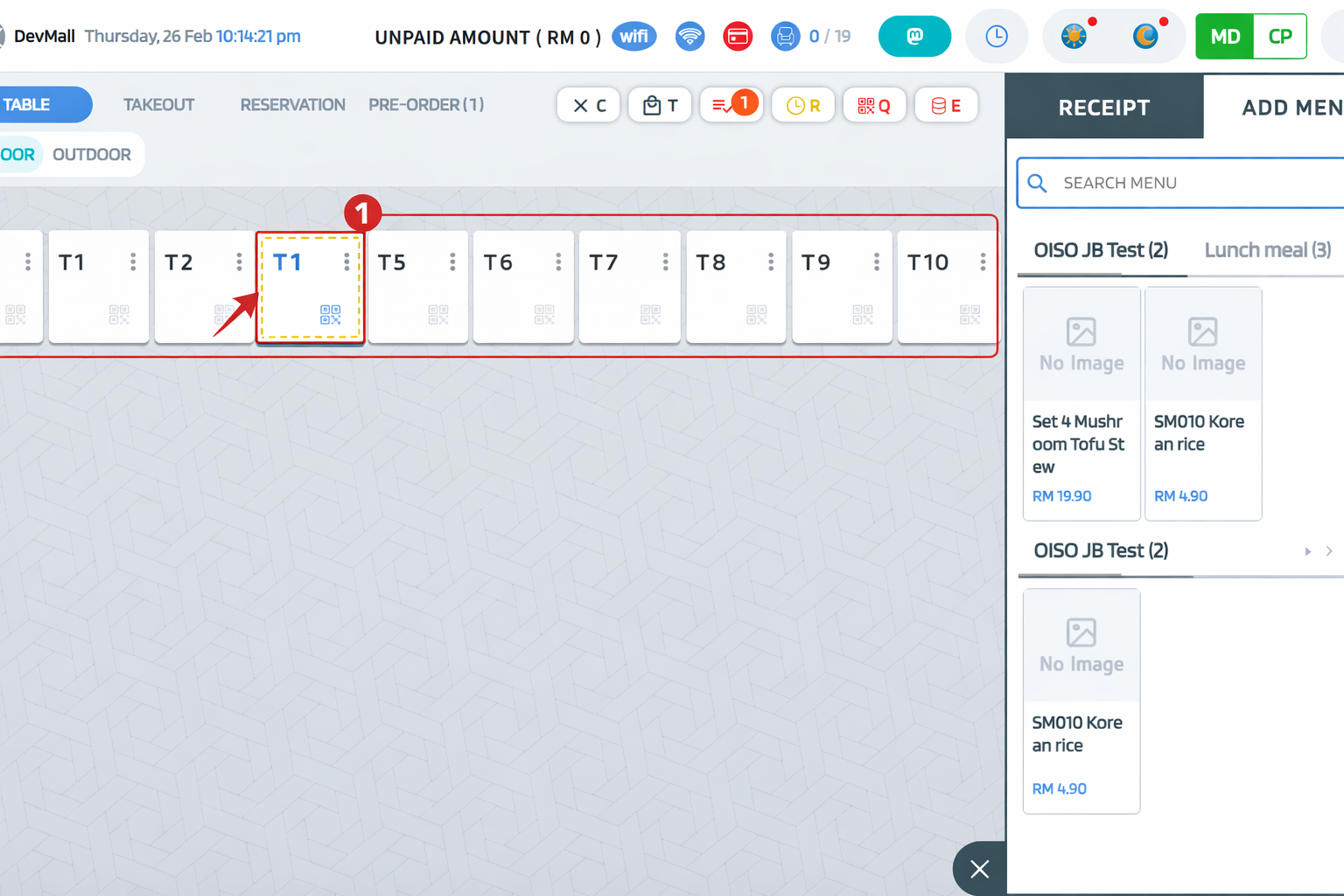
1-2. Main screen
Home
The screen showing tables is the main screen. Tap a table to view its orders or add a new order.
1-2. Main screen
3
1-3. How to take an order
Order
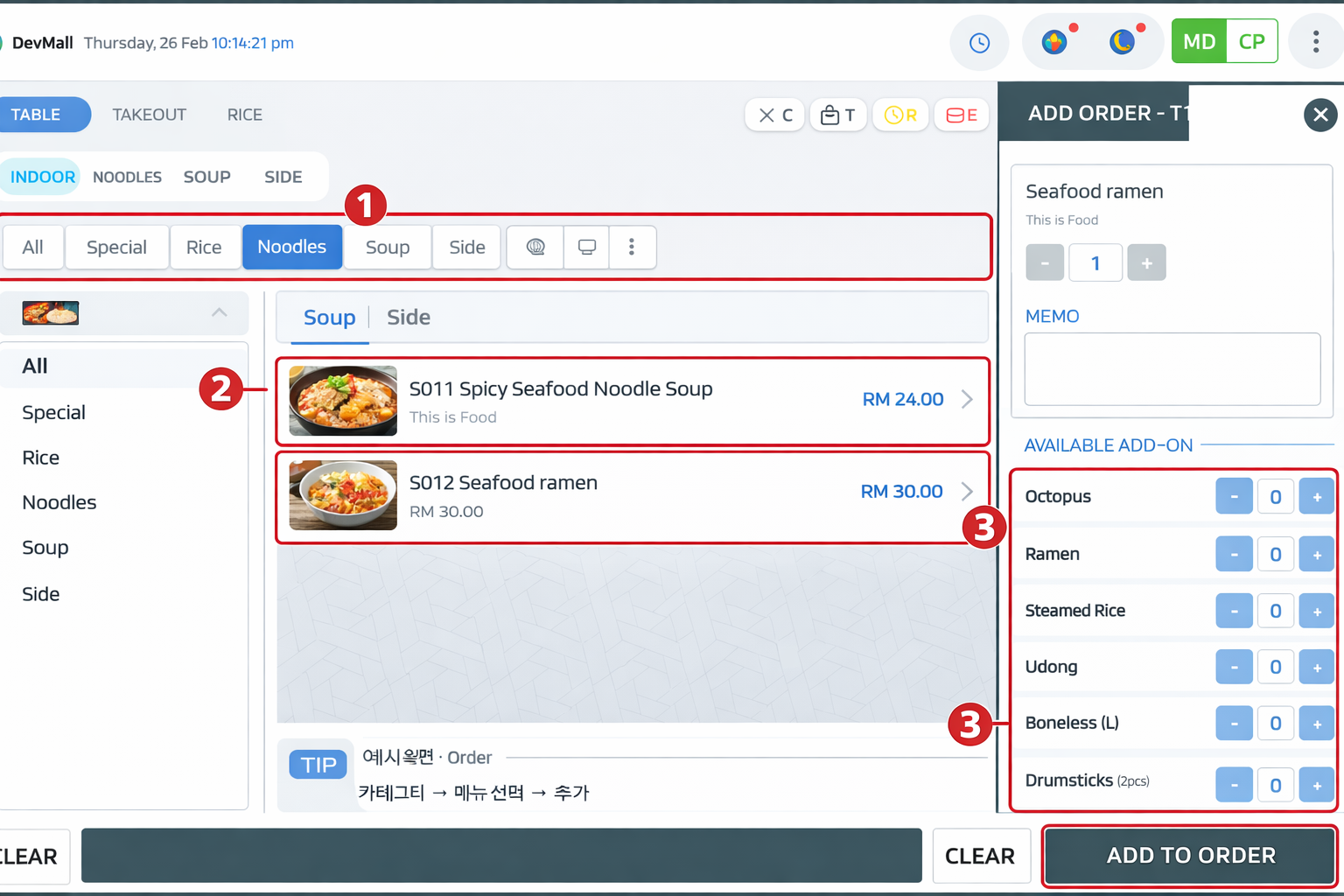
Basic steps to take an order:
Tap a table.
Choose menu items (category → then the item).
Set the quantity and tap Add.
If needed, select options (e.g. flavour, remove ingredient).
When the order is in the list, use the Payment button to continue.
1-3. How to take an order
4
1-4. How to pay
Pay
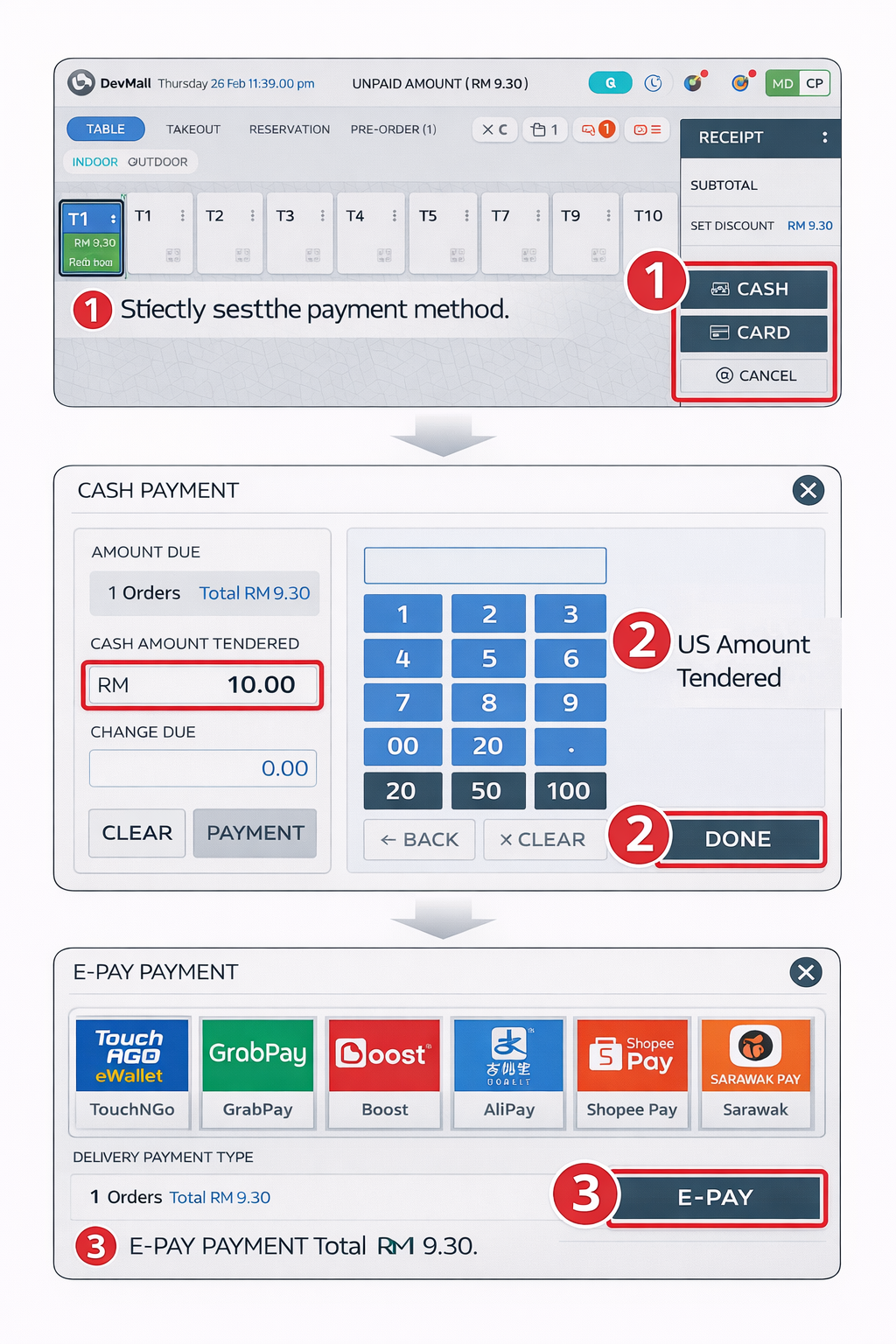
On the table with the order, tap Payment.
Choose Cash, Card, or another payment method.
Follow the steps, then finish. The receipt will print.
1-4. How to pay
5
1-5. Cancel or change an order
Edit
Cancel is only available before payment. Select the order on the table, then use Cancel or Edit.
6
1-6. Log out
End
When you finish, log out.
Top-right menu (☰) → Log out
7
1-7. Need more help?
Help
E-INVOICE Guide: See the manual's 「E-INVOICE Guide」 for e-Invoice.
Store settings, printer: Open menu (☰) → Settings / Network & Printers, etc.